Getting Started with Kaji
Getting started with Kaji is simple — open KajiChat and start typing.
Step 1: Open KajiChat
- Go to your Shakudo dashboard
- Click the KajiChat link or navigate to your organization's KajiChat URL
- Sign in with your Shakudo credentials
You'll see the KajiChat interface — a sidebar with your conversations on the left, and the main chat panel in the center.
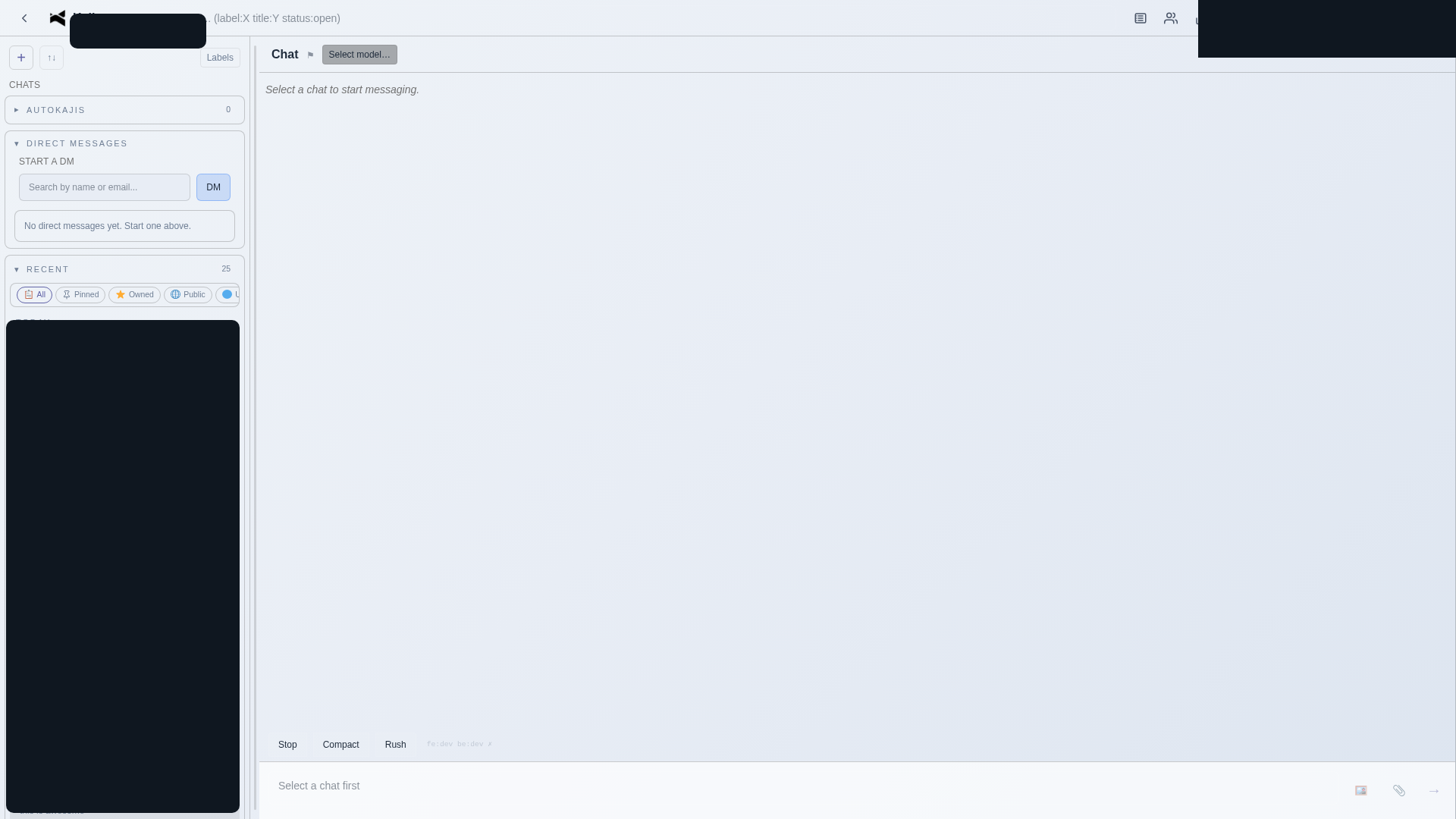
Step 2: Start a conversation
- If you have existing chats, click one in the sidebar to continue it
- To start a new chat, use the New Chat button in the sidebar
- Type your request in the composer at the bottom of the screen

You can describe tasks in plain language:
Summarize the key findings from last week's meeting notes
Query the sales database for Q1 revenue by region and create a chart
Create a ClickUp task for each action item in this document
Step 3: Choose your model (optional)
KajiChat lets you select which AI model powers your conversation. Use the model selector in the composer area to choose.

In most cases, the default model works well. Switch models if you need a specific capability (e.g., a faster model for quick questions, or a more capable model for complex reasoning).
Step 4: Review and iterate
Kaji responds with results, explanations, and follow-up questions. You can:
- Ask follow-up questions — Kaji keeps context across the conversation
- Request changes — "Make the chart use a bar format instead" or "Add a column for year-over-year growth"
- Approve actions — For sensitive operations, Kaji will ask for your confirmation before proceeding
Tips for best results
| Tip | Example |
|---|---|
| Be specific about what you want | "Create a summary table" rather than "Look at this data" |
| Mention the tools you want to use | "Query Dremio for..." or "Create a ClickUp task..." |
| Break complex tasks into steps | "First, pull the data. Then, summarize it. Then, create the report." |
| Ask Kaji to remember important facts | "Remember that our fiscal year starts in February" |
Keyboard shortcuts
| Shortcut | Action |
|---|---|
Enter | Send message |
Shift+Enter | New line in composer |
Escape | Interrupt current response |