KajiChat Interface
KajiChat is the primary way to interact with Kaji. This guide walks you through each part of the interface.
Overview
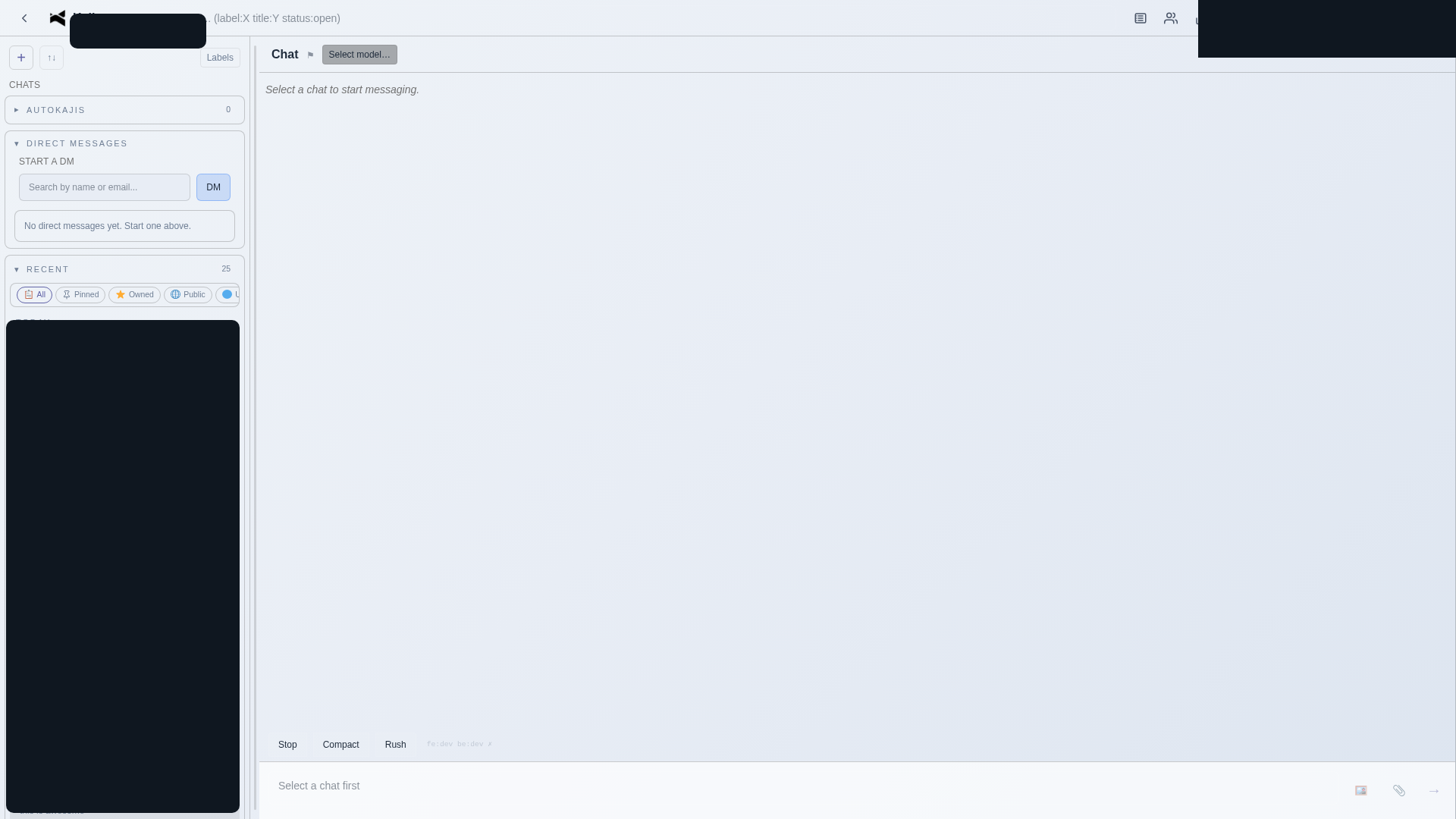
The KajiChat interface has three main areas:
- Sidebar (left) — Your conversations, filters, and navigation
- Main panel (center) — The active conversation with messages and results
- Composer (bottom) — Where you type your requests and control the conversation
Sidebar
The sidebar shows all your conversations organized by recency. You can:
- Browse recent chats — Each chat shows a title and preview
- Filter chats — Use the filter bar at the top to narrow by label or status
- Start a new chat — Use the new chat button
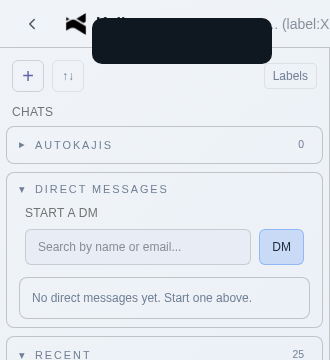
Filter bar
Use the filter bar at the top of the sidebar to quickly find conversations. Filters let you narrow chats by labels, status, or other attributes.

Main panel
The main panel displays your active conversation. Kaji's responses appear inline, including:
- Text responses — Explanations, summaries, and analysis
- Code and data — Formatted code blocks, tables, and charts
- Action confirmations — Kaji shows what it did (e.g., "Created 3 ClickUp tasks")
- File references — Links to generated or modified files

Model selector
The model selector in the composer area lets you choose which AI model powers your conversation. This is useful when you need:
- A faster model for quick, simple questions
- A more capable model for complex reasoning or large code tasks
- A specific model that works better with certain data types

In most cases, the default model selection works well for everyday tasks.
Composer and controls
The composer is where you type your messages. Below the input area, you'll find controls for managing the conversation:
- Send — Submit your message
- Stop — Interrupt Kaji's current response
- Compact — Compress the conversation context to free up space for longer discussions
- Rush mode — Skip planning overhead for quick, simple questions

Usage guide
KajiChat includes a built-in Usage Guide that shows common prompt patterns for capabilities like AutoKaji, workflows, memory, skills, browser automation, and more. Access it from the interface to see examples and tips.
You don't need magic words — but certain prompt patterns make your intent clearer:
| Prompt pattern | What Kaji does |
|---|---|
| "Create an autokaji daily to..." | Sets up a recurring automated task |
| "Save this as a workflow" | Captures the current process for reuse |
| "Follow the deployment workflow" | Runs an existing workflow |
| "Search memory for..." | Looks up prior knowledge and decisions |
| "Store in memory that..." | Saves a fact for future conversations |
| "Use rush mode and..." | Skips planning for quick answers |
| "Use the browser to..." | Opens a real browser to interact with websites |
| "Spawn a subkaji to..." | Delegates work to a parallel child agent |
| "Search the web for..." | Performs online research |
Note: Screenshots on this page were captured at 1920×1080 resolution at 100% zoom and lightly redacted for documentation purposes.