Using Kaji in Code-Server
When you launch a Kaji session on Shakudo, you get a full browser-based VS Code environment (Code-Server) with Kaji's AI assistant built in. This is the recommended interface for longer working sessions, writing and editing code, and tasks that involve multiple files.
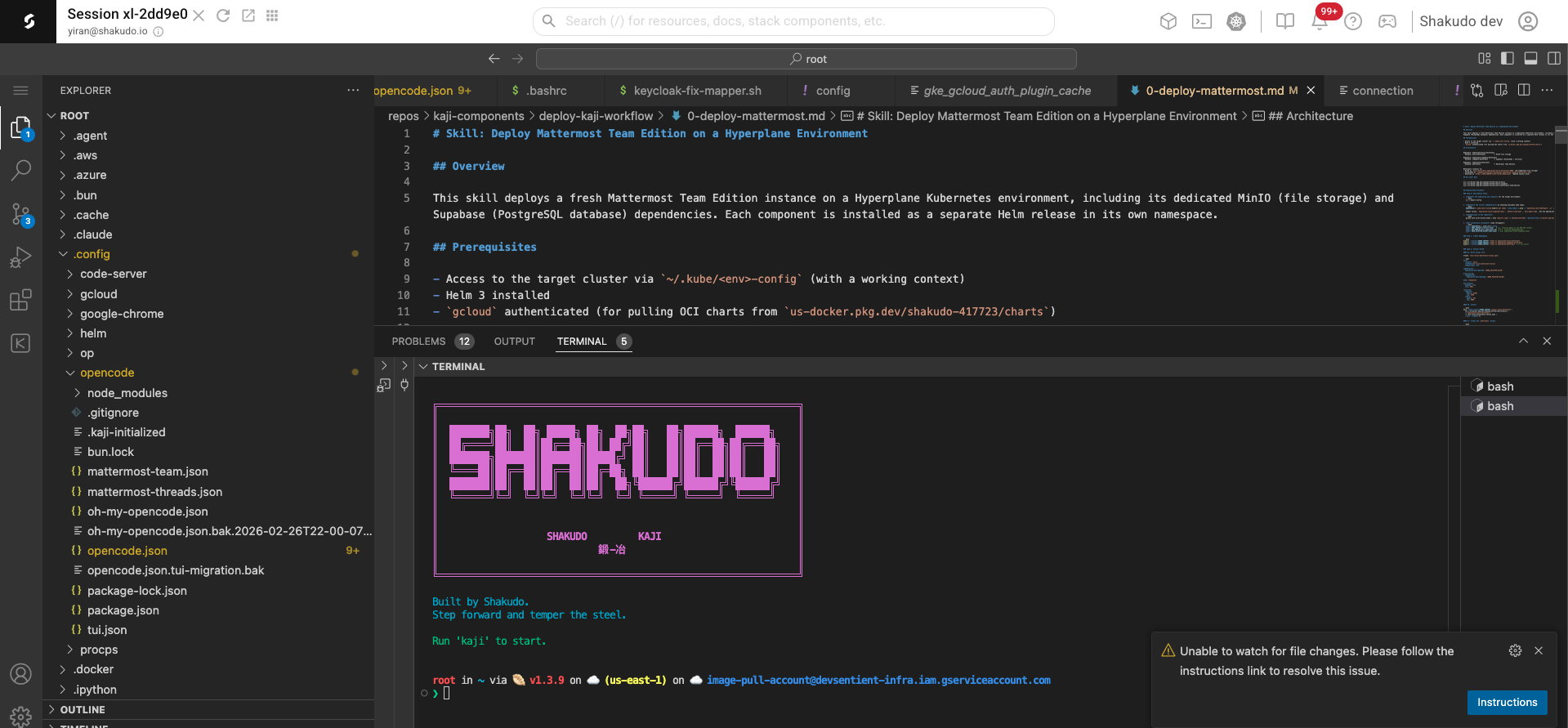
Launching a Kaji Code-Server session
- On the Shakudo dashboard, click Start a Session
- Select Kaji as the session type
- Optionally configure: drive, billing project, service accounts
- Click Start session
- Once running, click the VS Code button to open Code-Server
The Kaji environment
What's pre-installed
Your Kaji session comes with everything you need ready to go:
- Code-Server — browser-based VS Code
- OpenCode — the AI assistant CLI (run
kajito start) - All MCP integrations — pre-connected to your organization's tools
- Git — your repositories are accessible from
/root/repos - Common tools — Python, Node.js, bun, kubectl, gcloud, helm, and more
Starting the AI assistant
Open the integrated terminal (Ctrl+`) and run:
kaji
The terminal will display the Kaji welcome screen:
  ████████████████
  █  SHAKUDO    █
  █    KAJI     █
  ████████████████

Built by Shakudo.
Step forward and temper the steel.

Run 'kaji' to start.
Working with Kaji in the terminal
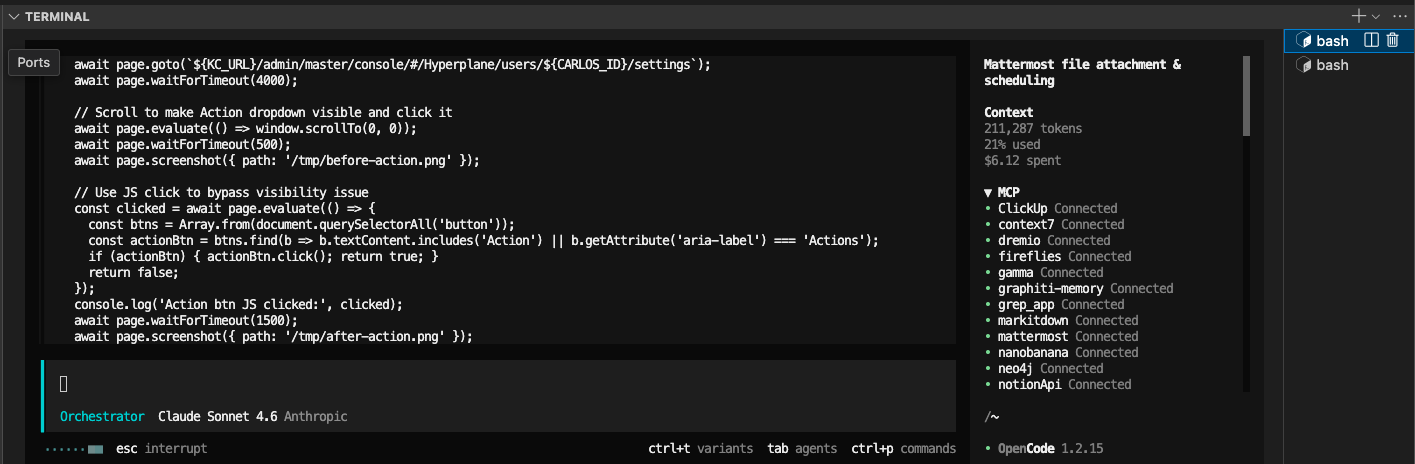
Once Kaji is running, you'll see two panels:
- Left panel: Your conversation and the AI's responses, including any code it's writing or running
- Right panel: Shows the current task context and your connected MCP integrations
MCP status panel
The right panel shows which integrations are active:
▼ MCP
• ClickUp       Connected
• context7      Connected
• dremio        Connected
• gamma         Connected
• mattermost    Connected
• neo4j         Connected
• notionApi     Connected
• supabase      Connected
• ...
All integrations listed as Connected are available for Kaji to use automatically based on your requests.
Keyboard shortcuts
| Shortcut | Action |
|---|---|
Ctrl+T | Switch between agent variants (Orchestrator, etc.) |
Tab | Browse available agents |
Ctrl+P | View all commands |
Esc | Interrupt the current operation |
Working with files
Code-Server gives you a full file explorer. Your files are organized under:
/root/
  repos/          ← Your connected git repositories
  opencode/       ← Kaji configuration
You can open, edit, and create files just like in a local VS Code. Kaji can also create and modify files for you when you ask it to.
Tips
- Use Code-Server when you need to review or edit files alongside the AI conversation
- The terminal and editor work together — Kaji can write code that you can immediately see and edit
- You can have multiple terminals open — one for Kaji, others for running commands
- Sessions persist your files on the connected drive — your work is saved between sessions